0.2Hardware: workstation, server, peripherals
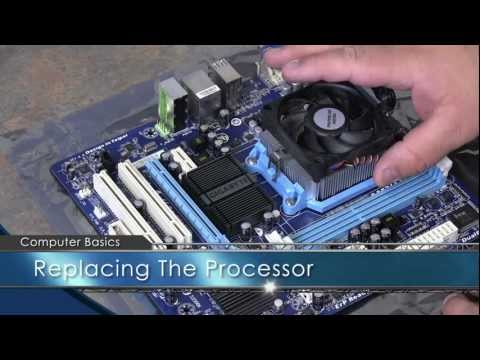
All IT sits on top of hardware. A workstation (desktop or laptop) serves a single user; a server delivers a service to many users at once, continuously and reliably. That single difference explains why servers are built for availability: redundant power and disks, designed to run 24/7, because a lot of people depend on them simultaneously. Inside any machine you find the same core parts — processor (CPU), memory (RAM), storage (SSD/HDD), motherboard, and often a graphics unit — plus peripherals around it: keyboard, mouse, monitor, printer, external drives.
You do not need to be an electronics engineer, but a technician must recognize these parts and understand their role, because symptoms map to components: a machine that is slow when many apps are open often needs more RAM; one that takes forever to open files may benefit from an SSD; random shutdowns can point to overheating or a failing power supply. Knowing whether a device is input (keyboard, scanner), output (monitor, printer) or storage also helps you reason about where a problem lives. This vocabulary is the ground floor of everything that follows.
Section vocabulary
- Workstation
- A computer (desktop or laptop) that serves one user at a time.
- Server
- A computer that delivers a service to many users continuously and reliably, built for availability.
- CPU / RAM / storage
- Processor (does the work), memory (fast, temporary working space), storage (keeps data long-term: SSD or HDD).
- Peripheral
- A device attached to a computer — input (keyboard), output (monitor, printer) or storage (external drive).
- Redundancy
- Duplicating critical parts (power, disks) so the service keeps running if one fails.
What best distinguishes a workstation from a server?
In practice — Inventory a machine
- On a computer you can access, note the CPU, amount of RAM, and storage type and size (SSD or HDD).
- List the peripherals connected and label each one input, output or storage.
- State whether this machine is a workstation or a server, and why.
- Suggest one realistic upgrade that would most improve its everyday speed.
Key takeaways
- Workstation = one user; server = many users, continuously, reliably (built for availability).
- Core parts: CPU (work), RAM (fast temporary memory), storage SSD/HDD (long-term data).
- Peripherals are input, output or storage — a useful way to locate a problem.
- Symptoms map to components: slow with many apps → RAM; slow to open files → SSD; random shutdowns → heat/power.
Frequently asked questions
What is the real difference between RAM and storage?
RAM is fast, volatile working memory: it holds what the computer is actively using right now, and it empties when you power off. Storage (SSD or HDD) keeps your data permanently, even when the machine is off, but is much slower than RAM. A useful analogy is a desk: RAM is the desktop surface where you spread the papers you are working on, while storage is the filing cabinet. Too little RAM forces the system to constantly shuffle papers back to the cabinet, which feels slow; a slow cabinet (HDD instead of SSD) makes every file take longer to fetch.
When does a small organization actually need a server?
Not always. Many small teams run entirely on cloud services (email, files, apps) and workstations, with no local server to maintain. A server earns its place when you need something shared, always-on and centrally managed on-site: a shared file store with fine-grained permissions, a line-of-business application, centralized accounts, or local backups. The trend is to move much of this to the cloud, but the concept still matters — a cloud service is, ultimately, someone else's very reliable server.